
WordPress runs more than 40% of all websites, according to W3Techs. It is flexible, easy to use and works for everything from a blog to an online store. That popularity also makes it the most common target for hackers, bots and automated attacks.
The good news is that most attacks go after easy gaps, such as old plugins, weak passwords and default settings. Closing those gaps takes an afternoon, and this guide walks you through it step by step.
Why WordPress security matters
A hacked website can cost you sales, traffic, your reputation and your Google rankings. Your contact form might start sending spam, or your online store might send customers to a scam site.
Worse, many owners only find out weeks later, when Google shows a warning or a customer complains. If that has already happened to you, follow our guide on how to fix a hacked WordPress website.
Must-have WordPress security plugins
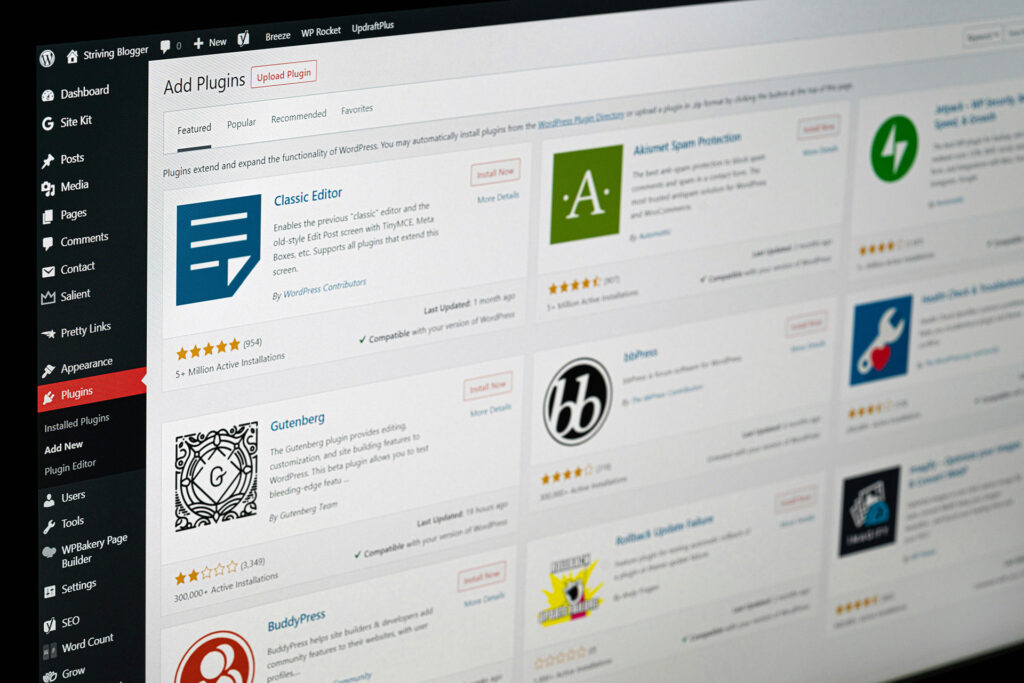
Start with one security plugin. Each of these covers the basics well, so pick the one that suits you best.
Wordfence Security
Free, with a paid Premium version
A firewall and malware scanner that run on your own site, with login protection built in.
- Web application firewall
- Malware scanner
- Two-factor login
- Login attempt limits
Solid Security
Free, with a paid Pro version
Formerly iThemes Security. Strong on protecting logins and spotting changes to your files.
- Two-factor login
- Brute force protection
- File change detection
Sucuri Security
Free, the firewall is a paid add-on
Monitoring and auditing, with an optional cloud firewall that stops attacks before they reach your server.
- Security activity log
- File integrity checks
- Remote malware scan
Pick one, not three
Security plugins overlap, slow your site down and can conflict with each other. One full-featured plugin is enough.
Essential WordPress settings for better security
Change your login address
By default, anyone can find your login page at /wp-login.php, and so can every bot. A plugin like WPS Hide Login moves it to an address only you know.
Use a unique username and a strong password
Never use admin as a username. Give every account its own long, unique password, ideally from a password manager, and turn on two-factor login for anyone with admin access.
Keep everything updated
Old plugins, themes and WordPress versions are the most common way in. Turn on automatic updates for plugins you trust, and check the rest at least once a week.
Turn off file editing in the dashboard
Add this line to your wp-config.php file.
define( 'DISALLOW_FILE_EDIT', true );If someone does get into your admin area, they can no longer change your theme or plugin code from there.
Best practices for a secure WordPress site
Five habits keep most attacks out.
- Use SSL (HTTPS) It encrypts what visitors send you, and browsers and Google expect it. Most hosts include a free Let’s Encrypt certificate.
- Limit login attempts Block an address after a few failed logins so bots cannot guess their way in.
- Back up every day Keep copies away from your server too, so you can restore quickly if something goes wrong. UpdraftPlus and BlogVault both do this well.
- Delete what you do not use Inactive plugins and themes can still be attacked. If you are not using it, remove it.
- Turn on two-factor login An app like Google Authenticator adds a code to every login, so a stolen password is not enough.
Add a web application firewall (WAF)

A web application firewall such as Cloudflare or Sucuri filters traffic before it reaches your server. It blocks known attacks and bad bots, and because it caches your pages it can make your site faster too.
Our WordPress hosting includes Imunify360 protection, SSL and daily backups, and our maintenance plans take care of updates and monitoring for you.
Want peace of mind?
Let us take care of your WordPress security
We harden WordPress sites, monitor them for threats and clean them up if something goes wrong. Pair it with a maintenance plan and your updates, backups and security checks are all handled for you.